
Connect to the device
Choose SSH, ADB, or the device desktop for your workflow.
Choose a connection method based on what is available during development. Use one method to confirm the device is alive before debugging application code.
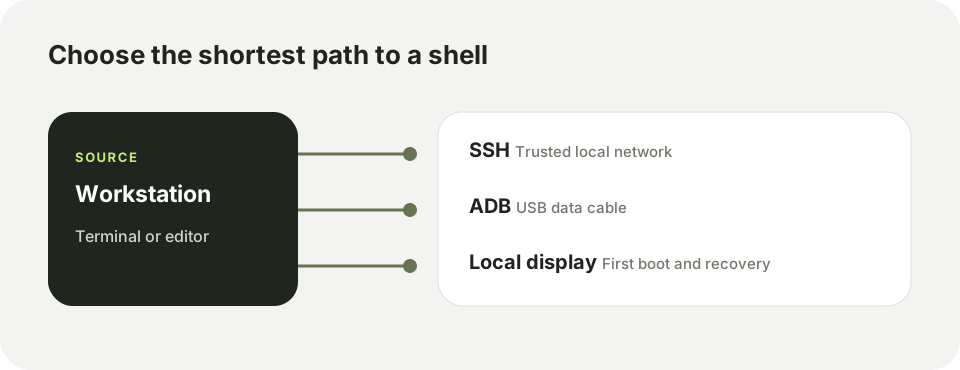
SSH over a local network
Connect the workstation and device to the same trusted network. Find the device address with ip -brief address on its local terminal, then connect with the account configured on the image:
ssh <username>@<device-ip>
If the host key changes after reflashing, verify that you are connecting to the intended device before updating your workstation's known-hosts entry. Use key-based authentication where available and change any factory credential before placing the device on a shared network.
ADB over USB
Connect a data-capable USB cable and confirm that debugging is enabled on the device. On the workstation:
adb devices
adb shell
An unauthorized device needs approval on its local screen. An empty device list usually means the USB mode, cable, permissions, or driver needs attention.
Local or web desktop
The local desktop is useful for first-boot setup and network configuration. AidLux images may also provide a browser desktop. Use the address and port shown by the installed image rather than assuming a universal URL. Keep any remote desktop limited to a trusted network.
For file transfer, prefer scp over SSH or the file manager built into the installed image. Confirm the destination directory is writable before transferring large files.